
Any screenshot you've taken, back from one word.
Shotbox is a menu-bar screenshot tool for macOS that lets you find any screenshot again from one word: after each capture it reads the text on your Mac, titles the shot and files it automatically. It is free, needs no account and works offline, and screenshots and their text never leave your device.
Or via Homebrew: brew install --cask gatheon-apps/tap/shotbox
On-device OCR
An open-source OCR model bundled with the app runs the recognition on your Mac — no servers for OCR, and it works fully offline.
No account · read-only originals
No signup, no cloud. It only reads to build the index — never modifies or deletes. Your originals are always yours to open directly.
Barely any permissions
One-click region capture asks for Screen Recording once — the permission any screen capture needs on macOS. It only reads your images, never alters them, and never asks for full-disk access.
The app sends anonymous usage stats only (never screenshots or content) — switchable off in Settings. This site uses Cloudflare analytics for page views.
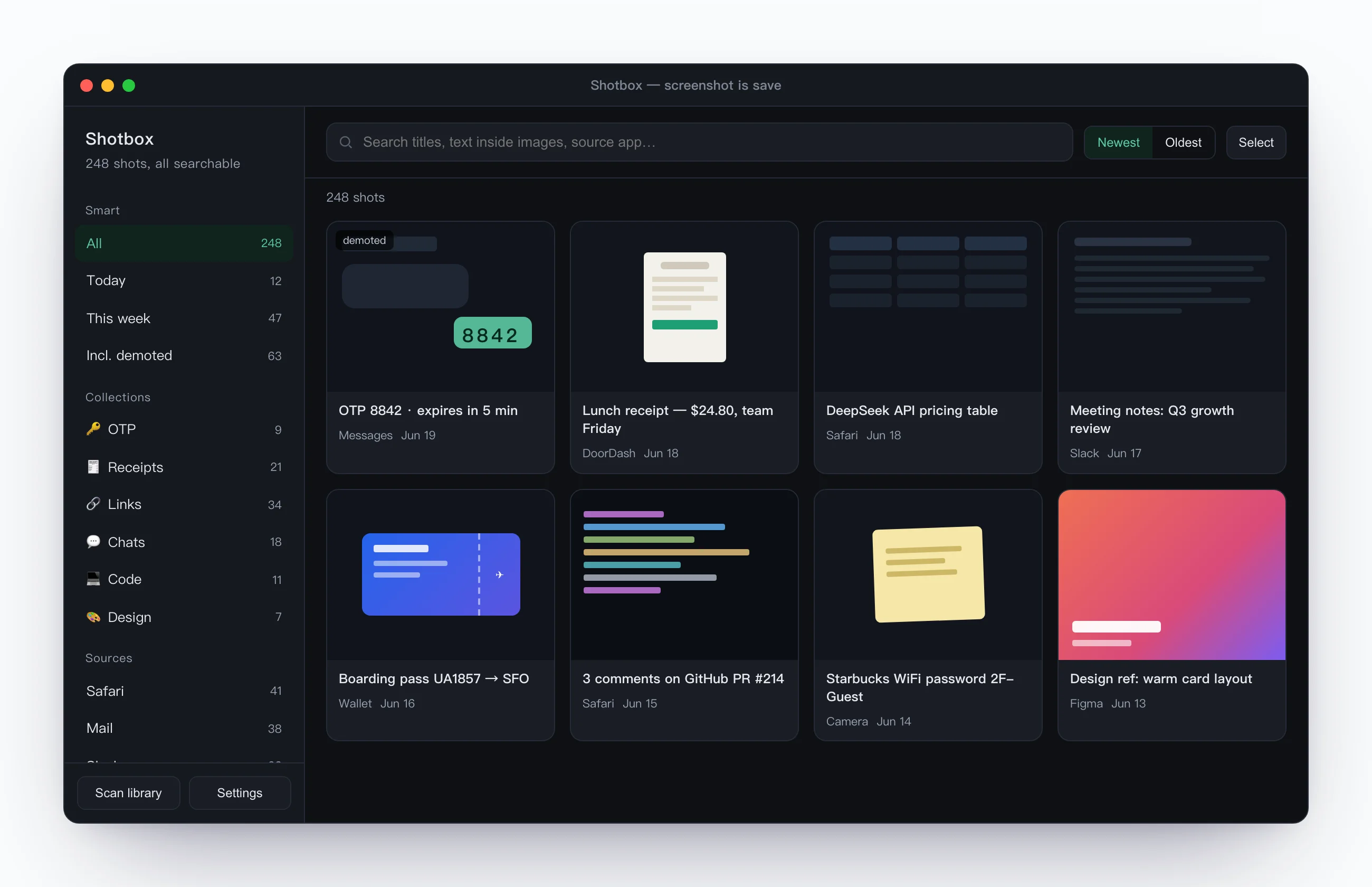
The hard part of a screenshot was never taking it — it's that it sinks into your library and you never find it again. Shotbox wires the shot straight into auto-read, saved, and searchable — so one phrase brings the original back, text and all. All on your Mac.
How do I find a screenshot from days ago with one word?
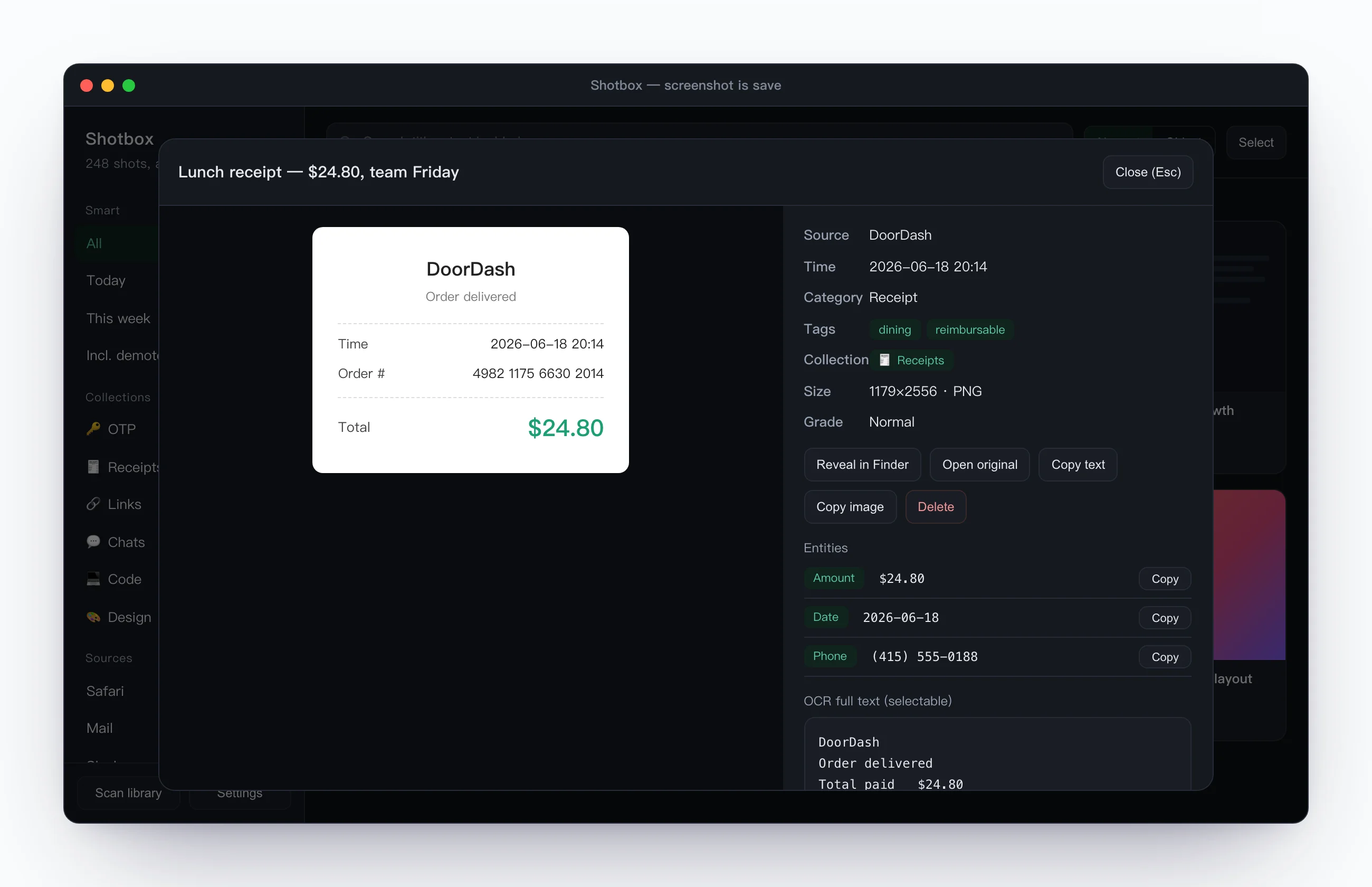
Remember "aws timeout," "boarding pass," or "the $24 one" — you're searching the actual text inside the image, not a name you gave it.
- ✓Returns the original image along with its extracted text and source app
- ✓Codes, amounts, order numbers, and URLs auto-extracted as one-tap fields
- ✓No tags, no folders, no import — the index grows itself
What does Shotbox do right after a capture?
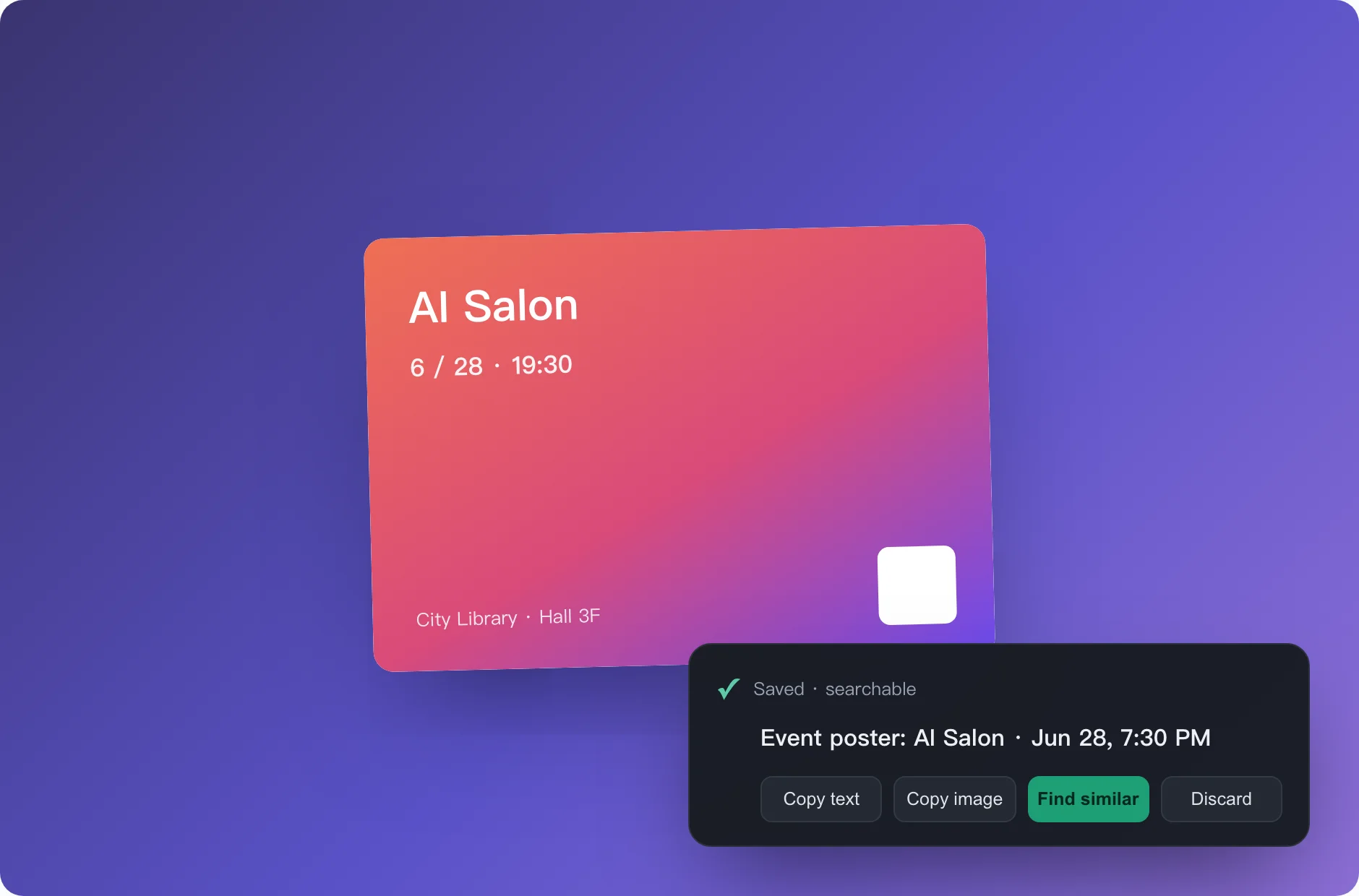
- ✓A "Saved · searchable" receipt the moment it's in — you know it's kept, no need to double-check
- ✓Copy text, copy image, find similar — right there on the receipt, without breaking what you're doing
- ↓Throwaway shots swipe away in one flick — an escape hatch for clutter, so it never reaches your library
Who is Shotbox for?
A swipe file for devs & creators
Errors, PR comments, API docs, commands, design references — screenshot on the fly. OCR makes code and text searchable; same-topic shots gather on their own, ready to pull in bulk when you write or debug.
Your desktop stops being a graveyard
Dozens a day piling up, never reopened — the offhand ones sink, the important ones rise. Clean desktop, nothing lost, and every shot searchable when you need it.
Receipts in a second
OTPs, order numbers, WiFi passwords, boarding passes — search a word, one-tap copy. Nothing private ever leaves the Mac.
How do I get started with Shotbox?
Drag to Applications
Download, unzip and drag it into Applications. It lives in the menu bar and runs quietly in the background — install and forget.
Shoot with a hotkey
Press your custom hotkey, drag to select the region — the moment you let go it reads the text, titles it, and saves it. Zero extra steps.
Search it back in plain words
Remember one word and the original is back — along with the text inside it and where it came from, key details one tap to copy.
You might be wondering
Are my screenshots uploaded anywhere?
No. OCR, titling, and categorization all run locally on your Mac; your screenshots and the text inside them never leave the device — no account, no cloud. The app sends anonymous usage stats only (a random device ID and a few "which features got used" events, never screenshots or any content), on by default and switchable off in Settings.
What permissions does it need?
The built-in one-click region capture asks for Screen Recording once — the permission any screen capture needs on macOS. It never asks for full-disk access, and only reads your images, never altering them.
Is it free? Which Macs does it support?
Free. Runs on macOS 13 and later, Apple Silicon and Intel both. Download, unzip and drag Shotbox into Applications, done.
What OCR engine does Shotbox use, and does it work offline?
Text recognition uses RapidOCR, an open-source OCR engine installed with the app (PP-OCR models, currently PP-OCRv6 small), and runs on the Mac, offline. If the model files are missing it falls back to the PP-OCRv3 model bundled in the package.
What does Apple Vision do in Shotbox?
Apple Vision is used only to read QR codes and barcodes, not for text recognition. Press the Capture Text shortcut and drag over an area and the text goes to your clipboard; over a QR code, what is copied is the decoded content. No image is saved and nothing leaves your Mac.
How does Shotbox compare with CleanShot X and the built-in screenshot tool?
CleanShot X is strongest after the capture: annotation, recording and sharing. Shotbox focuses on reading the text in each shot on your Mac so you can find it weeks later from one word. The comparison page puts price, requirements and features side by side; third-party facts were checked on 2026-10-14.
What is Connect AI in Shotbox?
Since 0.9.2 there is a Connect AI page in the app: create a separate connection for each AI client such as Claude, choose its scope, copy the MCP or HTTP config, and revoke it any time. It listens on the local 127.0.0.1 only, and AI cannot delete or overwrite what you edited.
How does Shotbox help with error screenshots while coding?
Error dialogs, PR comments, API docs and command output: once you capture them, Shotbox reads the text on your Mac and indexes it. Weeks later one remembered word, such as timeout, finds the image, its full text and where it came from.
How do I install it?
Download, unzip and drag it into Applications, open it. It's Apple-notarized, so the first open won't be blocked by Gatekeeper.
Always improving
Once installed, every update ships through in-app auto-update — no need to come back and download.
- If Screen Recording or Accessibility is revoked, Shotbox no longer goes through the motions with an empty result: the shortcut opens the matching permission guide, and the capture resumes after you grant it.
- Screen Recording now has the same guided setup (drag the icon into the list, flip the switch, resumes automatically).
- Permission status is probed live instead of trusting the system's cached answer.
- Scrolling capture rebuilt: press ⌥⌘K (new default hotkey), click a window, hit Return and it scrolls to the end by itself, straight into the capture card.
- Scroll any way you like in manual mode: up, down, overshoot and come back; chat histories that scroll upward stitch into one image.
- Floating buttons pinned in the viewport (back-to-top, chat bubbles) no longer repeat down the image.
- Guided Accessibility setup: drag the icon into the list, flip the switch, and Shotbox relaunches and resumes the capture.
- Sticky headers and footers appear once; the first frame no longer carries the selection border.
- Easy on the eyes at night: the main window, clipboard window, quick-paste panel and Settings now share one dark mode that follows the system, with no white flash when opening
- Find screenshots without touching the mouse: the cursor starts in the search box; ↓ moves into results, arrow keys pick an image, Return opens the detail view, Space previews, ← / → flips between images, ⌘C copies, and Esc steps back one layer at a time; ⌘F jumps back to search anytime
- Feels more like a native app: the title bar blends into the window, the window remembers its position and size, and choosing Open from the menu again keeps your search, filters and scroll position; the menu adds About Shotbox, Check for Updates… and a Window menu (⌘M to minimize)
- One vocabulary throughout: "demoted" becomes "less used", "OCR text" becomes "text in the image", times are shown to the minute; empty library, no search results and empty trash each tell you what to do next
- Tidier: the sidebar's Smart Collections and Entities are merged into "Auto groups"; Copy Text on a multi-selection now combines the text from every selected image; background refreshes pause while the window is hidden to save power
- Also in this release: deleting from the library has three entry points (hover trash icon, right-click menu, detail header), all move items to the trash first and can be undone; Settings > About now lists open-source licenses and copyright
Any screenshot you've taken, back from one word.
Free, local-first, screenshots never leave your device. Used daily as the developer's own default screenshot tool.
A few more tools from the same independent developer, all on the same local-first, findable-again principles.

Screenshot it and forget it — it comes back when you need it.

One screenshot, and the event lands in your calendar.

Auto-sorts your screenshot pile — a receipt before you delete.

Just do your work — files file themselves.

Hold to talk; real-time transcription into usable text.